

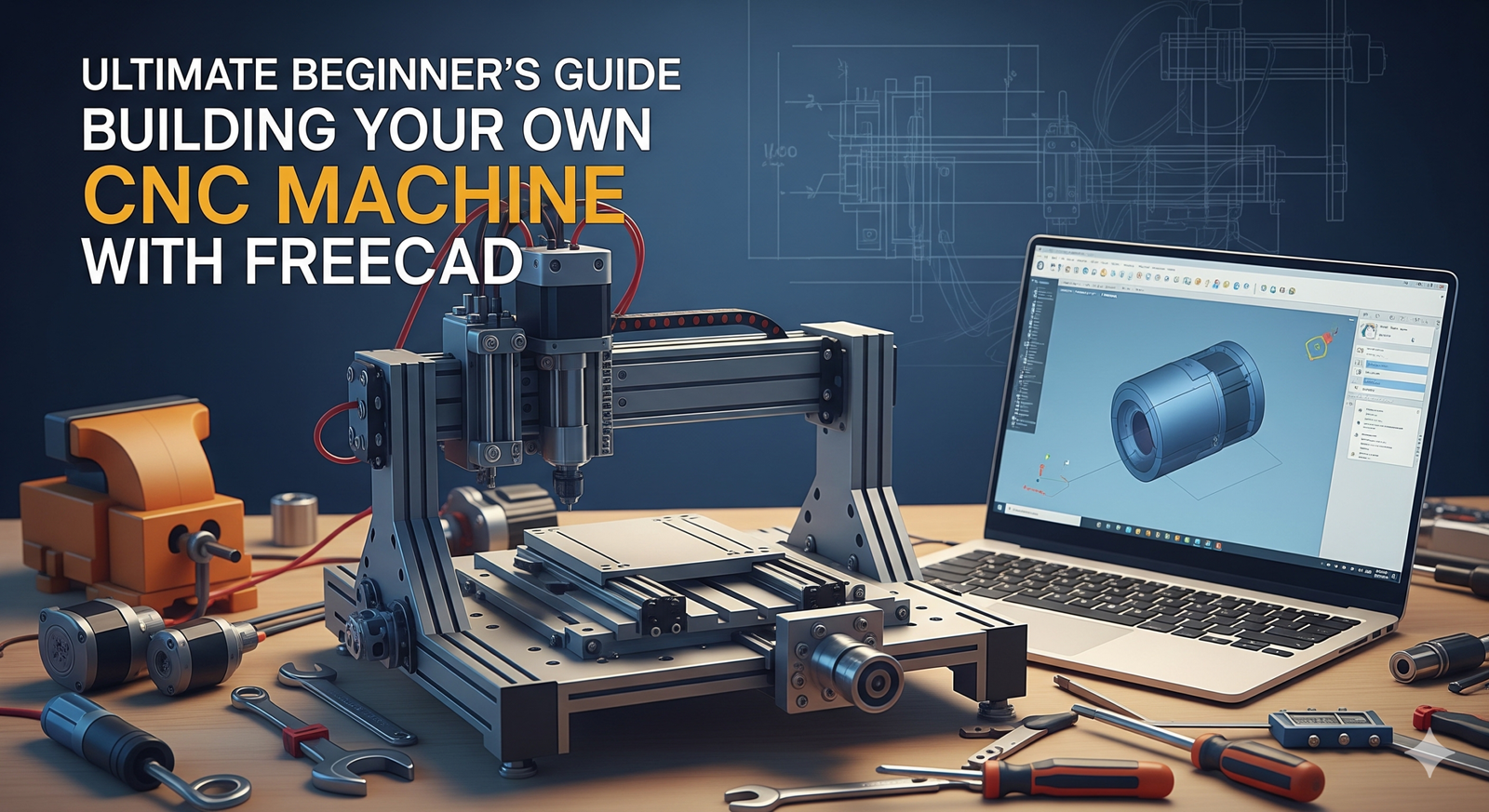
Greetings, fellow innovators and makers!
Have you ever dreamed of bringing your digital designs into the physical world with precision and repeatability? Imagine fabricating custom parts, engraving intricate designs, or even milling circuit boards, all from your own workshop. For many, the world of Computer Numerical Control (CNC) seems like a distant, industrial realm, requiring immense investment and specialized expertise. But what if I told you that the power of digital fabrication is not only within your reach, but you can build your very own CNC machine to achieve it?
As a Senior Technical Consultant at My Machines, I’ve seen firsthand how aspiring creators often hit a wall when faced with the perceived complexity and cost of industrial-grade tools. That’s why I’m incredibly excited to guide you through building your own homemade CNC machine, using the incredibly powerful and, most importantly, free software, FreeCAD. This isn’t just a project; it’s your first step into a world of endless possibilities, democratizing manufacturing one cut at a time.
Why DIY CNC + FreeCAD is Perfect for Beginners
The allure of CNC lies in its ability to execute precise, repeatable movements based on digital instructions. Historically, this meant expensive proprietary software like SolidWorks for design and equally pricey CAM (Computer-Aided Manufacturing) suites. While these industrial standards are unparalleled for large-scale production and complex engineering, they come with significant licensing costs and a steep learning curve that can be prohibitive for individual makers and startups.
This is where the open-source revolution, spearheaded by tools like FreeCAD and even Blender (for artistic CAD/CAM), truly shines:
- Cost-Effectiveness: FreeCAD is, as its name suggests, absolutely free. No hefty annual subscriptions, no license keys to manage. This drastically lowers the barrier to entry for anyone eager to experiment without financial risk.
- Freedom and Flexibility: Unlike proprietary software with vendor lock-in, FreeCAD is open-source. This means a global community of developers is constantly improving it, and you have the freedom to customize and adapt it to your specific needs.
- Vibrant Community Support: While commercial software offers dedicated support channels, the FreeCAD community is a vast, active network of users and developers. Forums, tutorials, and shared knowledge abound, making it easy to find help and inspiration.
- Perfect for Startups and Makers: For those on a tight budget, DIY CNC combined with FreeCAD offers an agile, low-cost solution for rapid prototyping, small-batch production, and unique custom projects. It fosters innovation without the upfront capital expenditure.
Starting with a DIY approach and FreeCAD allows you to understand the fundamental principles of CNC from the ground up, building practical skills that are invaluable regardless of whether you eventually scale up to industrial machinery.
Essential Components for a Basic Homemade CNC Machine
Building a basic CNC machine doesn’t require exotic materials. Here’s what you’ll typically need to get started:
- The Frame: This is the backbone of your machine. Common choices include readily available materials like plywood, MDF, or aluminum extrusions. The key is rigidity and stability to ensure accurate cuts. A simple “Prusa-style” frame made from printed parts and aluminum extrusions is a popular starting point.
- Stepper Motors: These precise motors (often NEMA 17 or NEMA 23) control the movement of your machine along the X, Y, and Z axes. They offer excellent positional accuracy, crucial for CNC work.
- Controller Board & Drivers: This is the “brain.” An Arduino board running GRBL firmware is a popular and inexpensive choice for beginners. It translates G-code instructions into motor movements. Stepper motor drivers (e.g., A4988 or DRV8825) amplify the signals to power the motors.
- Lead Screws or Belts: These mechanisms translate the rotational movement of the stepper motors into linear motion for your gantry and spindle. Lead screws with anti-backlash nuts offer high precision, while timing belts are good for faster, larger machines.
- Linear Rails/Bearings: To ensure smooth and precise movement along the axes. V-slot wheels on aluminum extrusions, or linear bearings on polished rods, are common solutions.
- Spindle/Router: This is the cutting tool. For beginners, a compact trim router (like a DeWalt DWP611 or a cheap generic one) or even a Dremel tool can serve as an excellent starting spindle for softer materials like wood, plastic, or foam.
- Power Supply: A suitable power supply unit (PSU) to power your motors and controller.
Remember, you don’t need to build a powerhouse from day one. Start simple, understand each component’s role, and you can always upgrade or expand later!
Introduction to FreeCAD for Design: Your First Simple Part
FreeCAD is a parametric 3D CAD modeler, meaning you can easily modify your designs by changing their underlying parameters. It might seem daunting at first, but for a simple CNC project, we’ll focus on just a few key workbenches.
- Start a New Document: Open FreeCAD and create a new document.
- Switch to the Part Design Workbench: This is where you’ll create most of your 3D geometry.
- Create a Body and a Sketch:
- Click “Create body” and then “Create sketch.”
- Select one of the standard planes (e.g., XY_Plane for a top-down view).
- Draw Your First Simple Part:
- Using the “Rectangle” or “Circle” tools in the Sketcher, draw a simple 2D shape.
- Use constraints (e.g., dimension constraints, coincident constraints) to fully define your sketch. For example, make a square 50mm x 50mm.
- Close the sketch.
- Extrude the Sketch (Pad):
- With the sketch selected, click the “Pad” tool. This will give your 2D sketch a 3D depth. Enter a small length, say 10mm.
- You’ve now created a simple 3D block!
- Create a Pocket (Optional but Illustrative):
- Select the top face of your new block.
- Click “Create sketch” again.
- Draw a smaller rectangle or circle inside your first shape on this new sketch plane.
- Close the sketch.
- With the new sketch selected, click the “Pocket” tool. This will cut material away. Enter a depth (e.g., 5mm) to create an indentation.
Congratulations! You’ve just designed your first 3D part in FreeCAD. This simple process of sketching and extruding (Pad for adding material, Pocket for removing) forms the basis of many CNC designs.
Generating G-code Using FreeCAD’s Path Workbench
Once your design is complete, the next crucial step is to translate it into instructions your CNC machine can understand. This is where the Path Workbench in FreeCAD comes in.
G-code is the universal language of CNC machines. It’s a series of commands (like G0 X10 Y5 Z0, M3 S1000) that tell the machine exactly where to move, how fast, and what to do with its spindle.
- Switch to the Path Workbench: Select it from the workbench dropdown menu.
- Create a Job: Click the “Create a new CNC job” button. This job will encapsulate all your cutting operations.
- Define the Stock:
- In the Job properties, go to the “Stock” tab.
- Define the dimensions of your raw material (e.g., a block of wood or plastic) that your part will be cut from.
- Add a Tool Controller:
- Go to the “Tools” tab in the Job properties.
- Add a “Tool controller” and define the characteristics of your cutting tool (e.g., a 6mm flat end mill). This includes diameter, feed rates, and spindle speed.
- Create Path Operations:
- For our simple pocket, select the bottom face of the pocket you created.
- Click the “Pocket” operation button in the Path Workbench toolbar.
- Adjust parameters like depth, step-over, climb/conventional milling, etc.
- For a profile cut (cutting out the outer shape), select the bottom edge of your part and use the “Profile” operation.
- Simulate the Path (Optional but Recommended):
- Select your Job and click the “Simulate the path” button. This lets you visually check if the tool paths are correct before sending them to the machine.
- Generate G-code (Post-processing):
- Select your Job.
- Click the “Post-process the selected job” button.
- Choose your “Post-processor” (e.g., “grbl” for Arduino-based machines).
- Save the generated .gcode file to your computer.
You now have a G-code file, ready to be loaded into your CNC control software (like Universal Gcode Sender or Candle) and sent to your homemade machine!
Your First Successful Cut: Tips for Calibration and Safety
This is where the magic happens! But before you hit “RUN,” a few critical steps are essential for success and safety:
- Calibration is Key:
- Steps per Millimeter: You’ll need to calibrate your controller (e.g., GRBL settings) to ensure that when it commands the motor to move 10mm, it actually moves 10mm. This involves adjusting “steps/mm” settings for each axis.
- Axis Direction: Confirm that your X, Y, and Z axes move in the correct direction (positive X moves right, positive Y moves away from you, positive Z moves up).
- Workpiece Zeroing: Accurately set your X, Y, and Z zero points on your raw material. This tells the machine where the origin of your G-code design should align with the physical material.
- Start with Soft Materials: Begin with easy-to-cut materials like foam, MDF, or soft pine. This allows you to test your machine’s movements, feed rates, and spindle speeds without damaging tools or the machine itself.
- Feed and Speed Settings: These are crucial. Too fast a feed rate or too slow a spindle speed can break end mills or cause poor cut quality. Consult online resources or tool manufacturer recommendations for starting points for your chosen material and end mill.
- Test Air Cuts: Before cutting into material, run your G-code program with the spindle OFF and raised safely above your material. Watch the tool path to ensure it moves as expected.
- SAFETY FIRST, ALWAYS!
- Eye Protection: Always wear safety glasses or a face shield.
- Hearing Protection: Routers can be loud. Wear ear protection.
- Secure Workpiece: Use clamps or double-sided tape to firmly secure your material. A loose workpiece is a major hazard.
- Emergency Stop: Know where your emergency stop button is and ensure it’s easily accessible and functional. Be ready to hit it at any moment.
- Dust Collection: Cutting generates dust. Use a shop vac or dust shoe to keep your workspace clean and reduce airborne particles.
- Never Leave Unattended: Stay near your machine while it’s operating.
Your first successful cut, even if it’s just a simple square, will be an incredibly rewarding moment. Embrace the learning process, troubleshoot patiently, and celebrate every small victory!
Embark on Your Digital Fabrication Journey!
Building your own CNC machine with FreeCAD is more than just a technical project; it’s an empowering journey into the world of digital fabrication. It’s about taking control of the manufacturing process, transforming ideas into tangible objects, and joining a global community of innovators.
At My Machines, we believe in equipping you with the knowledge and confidence to build your dreams. You now have the roadmap. The tools are free, the community is vibrant, and the potential is limitless.
So, what will be the first incredible thing you design and cut? Share your thoughts, questions, and aspirations in the comments below! We can’t wait to see what you create.
Happy Making!